
Put the chatbot on your website in three simple steps.
This page is only for one thing: copy the script, paste it into your website, and confirm the bot appears on the live domain.
Copy this script
Install this once on your website. If your bot is assigned to the same live domain, the widget will load automatically.
<script src="https://your-app-domain.com/chatbot.js"></script>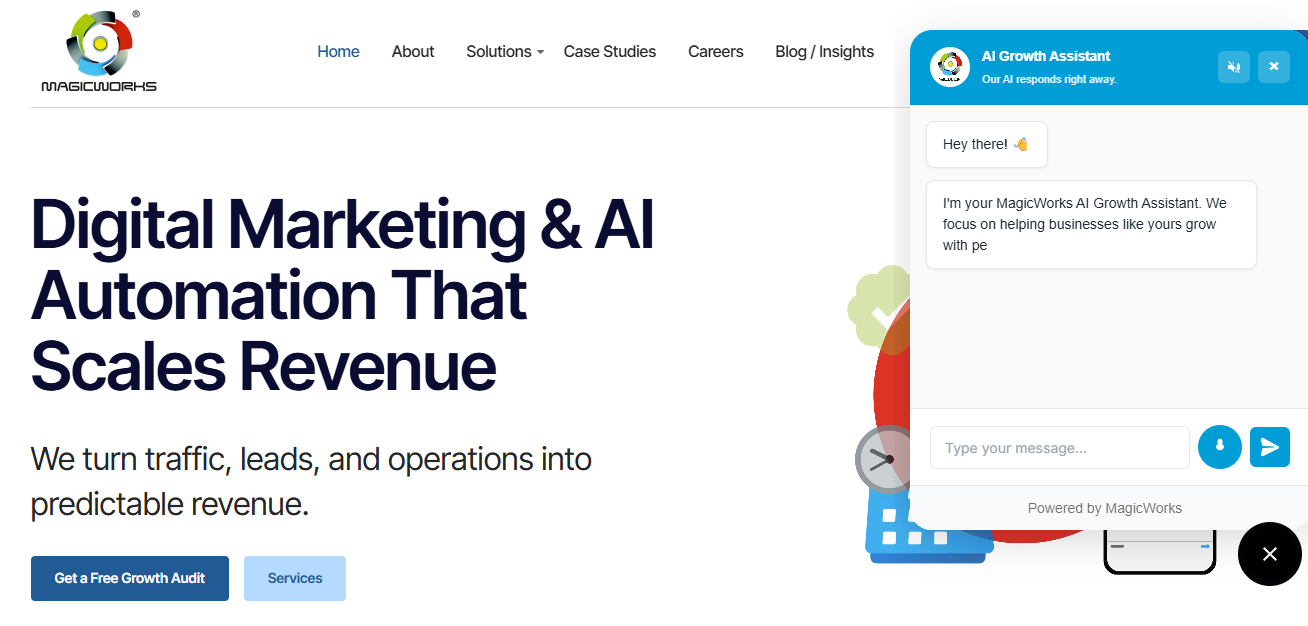
Do this in order
Assign your bot to the website domain
Make sure the same live domain is already connected to the bot inside your bot/domain settings.
Copy the script
Use the generated snippet below exactly as shown. No backend changes are needed.
Paste it before `</body>` and publish
Deploy the website, open the live URL, and wait a few seconds for the widget launcher to appear.
Troubleshooting
Widget does not appear
Check that the domain assigned to the bot matches the domain where the script is installed.
Bot says it is not active
This usually means the live website domain does not match the saved bot-domain assignment.
Widget looks wrong
Open customization, review colors, image, size, and layout settings, then refresh the live site.
Paste example
If you manage a plain HTML template, this is the safest placement.
<!doctype html>
<html lang="en">
  <head>
    <title>Your Website</title>
  </head>
  <body>
    <div id="app"></div>
    <script src="https://your-app-domain.com/chatbot.js"></script>
  </body>
</html>
What happens after install
After install, open your live site and confirm the launcher appears, the correct bot loads, and the colors/avatar match your customization settings.